


Quick Start
Guide
Follow this structured guide to complete the required account creation.

Open the Sunsynk Connect Pro App. Upon launch, you will be greeted with the sign-in screen. At the bottom of this screen, tap Sign Up.
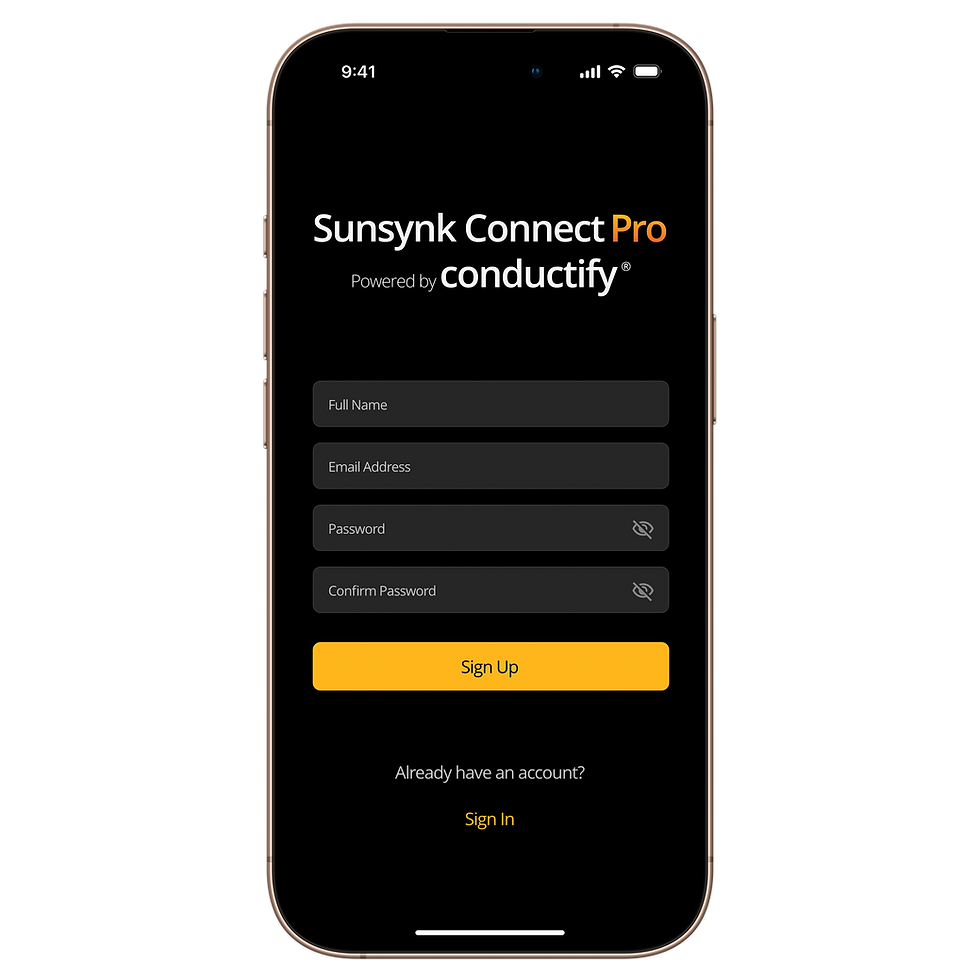
You will then be prompted to enter your details, including your name, email address, and a secure password. Once you have completed the form, tap Sign Up again.

You will then be directed to your personal Plant List, which will initially be empty.
Create an Account

After signing in, you will arrive at your Plant List. To add a new plant, tap the Add (+) button, which is located to the right of the search bar.
It is extremely important that you ensure all your device and plant information is complete and accurate. If any information is missing and/or inaccurate, this will affect the accuracy of the AI-based predictions and associated management and financial performance.

You will be prompted to enter your equipment details. Complete the inverter information section (Serial Number and Model). If you have multiple inverters in parallel, select Add (+) and enter the details of your secondary inverter.

Complete the Data Logger information section (Serial Number, Key and Type).

Complete the battery information section (Type, Model, Quantity and Serial Number).
Complete the PV information section (Capacity). PV Capacity is the amount of PV/Solar you have installed in Watts (W).

Complete the plant information section (Plant Name, Commission Date, Country, Address, and Investment Amount).
It is important to get the location information accurate. The AI reads data from your nearest weather station to be able to make a prediction on solar production based on your weather data. The most important key metric for the United Kingdom is “Postal Code”.

Complete the Rate Region information section (GB Rate Type and Octopus Region). You will be asked to select your rate type. If you have a supported smart tariff such as Agile Octopus or Flux, select it and then select your region; the system will then automatically gather your import and export price information. If you do not have a supported smart tariff, then you will need to manually enter rates, using either the ‘Constant’ option (where your rates are not time variable) or as time-of-use rates.

Complete the grid information section (Grid Connected and Grid Mode).

Complete the solar PV information section.
MPPT - Within the MPPT section, you should include the number of solar panels connected to each of the MPPT’s.
VOC / ISC / IMP – This data can be found on your solar panel datasheet.
Create a Plant (United Kingdom)
Scroll to read more.
After signing in, you will arrive at your Plant List. To add a new plant, tap the Add (+) button, which is located to the right of the search bar.
It is extremely important that you ensure all your device and plant information is complete and accurate. If any information is missing and/or inaccurate, this will affect the accuracy of the AI-based predictions and associated management and financial performance.
You will be prompted to enter your equipment details. Complete the inverter information section (Serial Number and Model). If you have multiple inverters in parallel, select Add (+) and enter the details of your secondary inverter.
Complete the Data Logger information section (Serial Number, Key and Type).
Complete the battery information section (Type, Model, Quantity and Serial Number).
Complete the PV information section (Capacity). PV Capacity is the amount of PV/Solar you have installed in Watts (W).

Complete the plant information section (Plant Name, Commission Date, Country, Address, and Investment Amount).
It is important to get the location information accurate. The AI reads data from your nearest weather station to be able to make a prediction on solar production based on your weather data. The most important key metric for South Africa is “City”.
Complete the Rate Region information section. You will be asked to enter information necessary to associate you with an Eskom area for load shedding. In addition, you will need to manually enter rates using either the ‘Constant’ option (where your rates are not time variable) or as time-of-use rates, as applicable for your municipality and/or estate.
Complete the grid information section (Grid Connected and Grid Mode).
Complete the solar PV information section.
MPPT - Within the MPPT section, you should include the number of solar panels connected to each of the MPPT’s.
VOC / ISC / IMP – This data can be found on your solar panel datasheet.
Create a Plant (South Africa)
Scroll to read more.
If your system has been carried over automatically, your account will be available to Sign In via the Sunsynk Connect Pro App. You will need to reset your password for security purposes. To do this, tap 'Forget Password' and follow the process.

When you sign in, you will see the plants you had connected to your account.
Only the supported inverters connected to your account will have been migrated.
For more information on this, please visit the FAQ section on
www.sunsynkconnectpro.info

When you open your plant for the first time, it will ask you for some missing information. This missing information is essential for the new features to operate correctly.

Complete any missing information.
Fields may vary by region.

Your Plant Overview will now open.
Access Your Pre-Populated Account
Scroll to read more.

Create an account . To create an account, open the Sunsynk Connect Pro App. Upon launch, you will be greeted with the sign-in screen. At the bottom of this screen, tap Sign Up.
If you have an account setup on Sunsynk Connect, please register using the same email address.
If your account has been automatically migrated, you should have an email with your new credentials. If you haven't receieved this, enter the same email address and select forgot password.

You will then be prompted to enter your details, including your name, email address, and a secure password. Once you have completed the form, tap Sign Up again.

You will then be directed to your personal Plant List, which will initially be empty. Tap the Add (+) button, which is located to the right of the search bar.

Enter your inverter's serial number and select 'Done'. The system will now automatically fetch information from your inverter to populate most fields.

Complete any missing fields.
Fields may vary by region.
Time/Rate slot details must align with tariff details provided by your grid retailer.

Your Plant Overview will now open.
Access Your Account if Not Pre-Populated
Scroll to read more.

On your plant overview page, you will see a green tile that is locked and includes a button showing Active Now. Tap this and it will take you to the
Subscriptions page, also accessible via the Subscriptions tab at the bototm of the page.
The following pages are UK examples, currency denominations and prices vary by country.

Tap Start Free Trial next the plant you would like to setup the subscription for.
Only users with write access to the plant have permission to activate a trial/subscription. To activate, you must either be the owner or manager of the plant.

Follow the guided questions in the AI Setup Wizard.

Progress to the next part of setup.

Progress to the next part of setup.

Progress to the next part of setup.

Progress to the next part of setup.

Once the Wizard has configured the suitable AI operation mode for you. Tap Upgrade Now for the free trial.

Your subscription is now active.